RDC Cloud 1.6.0 — Cloud Assistant and Feature Control
Meet Cloud Assistant, manage feature rollouts with Feature Control, create service accounts, configure persistent volumes, and work faster with improved Envault editing and container recovery.
RDC Cloud 1.6.0 introduces Cloud Assistant and Feature Control, alongside new service accounts, persistent volume management, and improvements to everyday Console workflows.
Screenshots below were captured in RDC Cloud Console. Select an image to open its full-resolution PNG.
Work with your project in Cloud Assistant
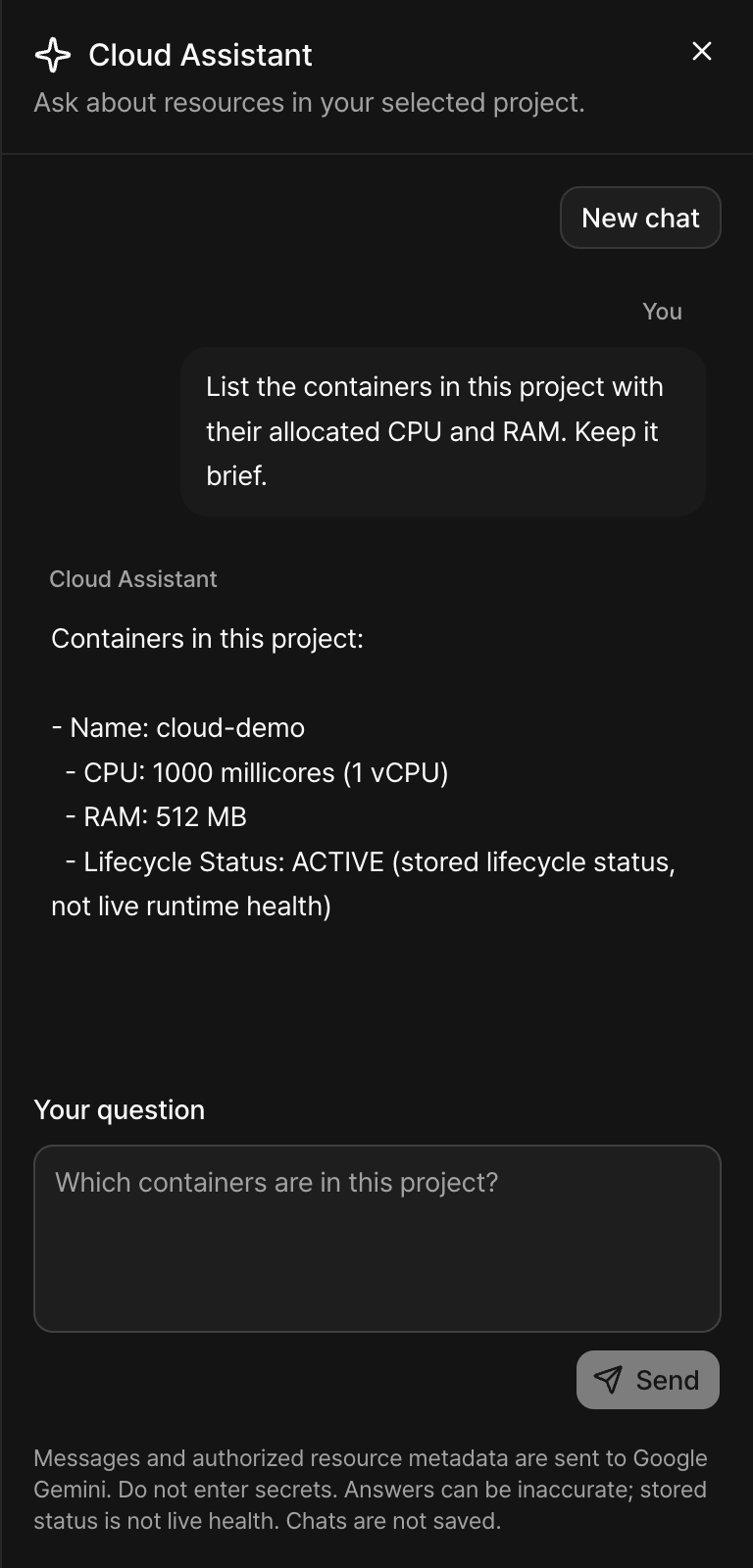
Open the sparkle icon beside notifications to ask about your selected project's containers, PostgreSQL and Redis databases, assigned resources, and estimated costs. Cloud Assistant opens in a right-side panel, streams its answers, and replies in the language of your question.
You can also ask it to prepare an HTTP application, Redis or PostgreSQL deployment, or propose a start, stop, restart, redeploy or delete action for an existing container. Review the proposal and explicitly confirm before anything changes. Deployment cards show progress and link to the resulting resource.
The assistant respects your existing project permissions. It does not read secret values or inspect live logs, and sending a chat message alone never creates, changes or deletes a resource. Use ⌘+Enter or Ctrl+Enter to send a question.
Manage releases with Feature Control
Feature Control brings feature flags and remote configuration into your project. Create Boolean, String or Number flags, then manage their activation, targeting rules and percentage allocations separately for each environment.
The flag table shows environment statuses side by side. Open a status to edit that environment's configuration, reorder targeting rules, and save changes together. Development and Production environments can be set up in one step.
Connect applications through the displayed SDK endpoint using compatible GO Feature Flag/OpenFeature providers. SDK token activation and revocation currently require support confirmation; saving a flag does not deploy an application. See the guide for connection requirements and supported values.
Get started with Feature Control.
Give automation its own identity
Service Accounts provides Workspace-owned identities with dedicated credentials and explicit project access. Select Create service account to open the new right-side creation panel. Each account has a permanent address and an editable display name.
Issue expiring tokens, rotate or revoke them, and disable an account when its workload no longer needs access. This release supports automated Feature Control configuration retrieval; service-account tokens are separate from application SDK tokens.
Configure persistent volumes
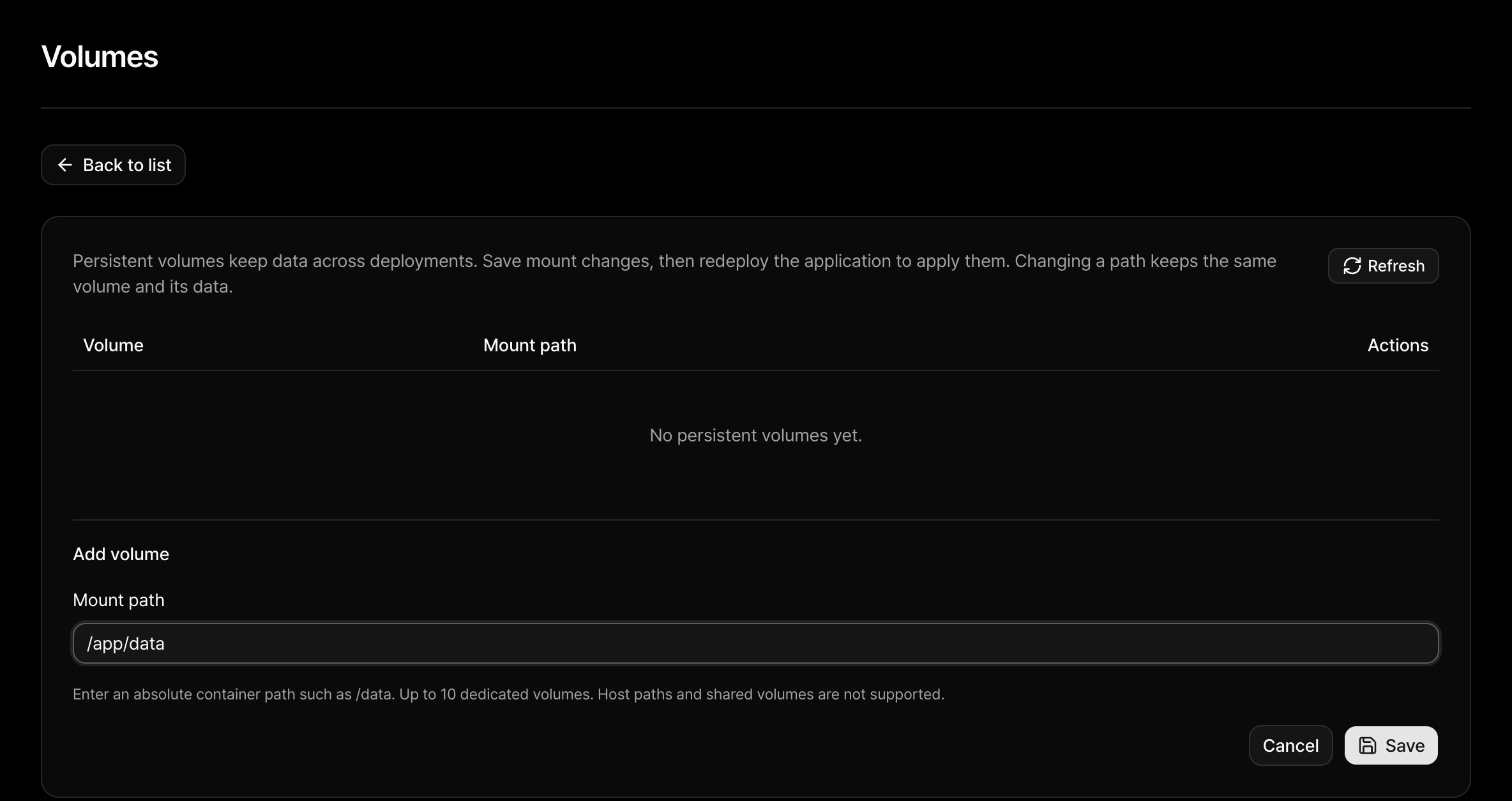
Add persistent volume mount paths when creating a container, or open an existing application's Volumes tab to add a dedicated volume or edit its mount path. Redeploy to apply saved changes to the running application.
The editor supports up to ten dedicated volumes for applications without Docker Compose. Existing imported volumes and host mounts remain read-only. Persistent storage does not replace a backup.
Edit and organize Envault more easily
- Rename keys inline. Click a key name to edit it while keeping its value masked. Name and value edits can be saved together.
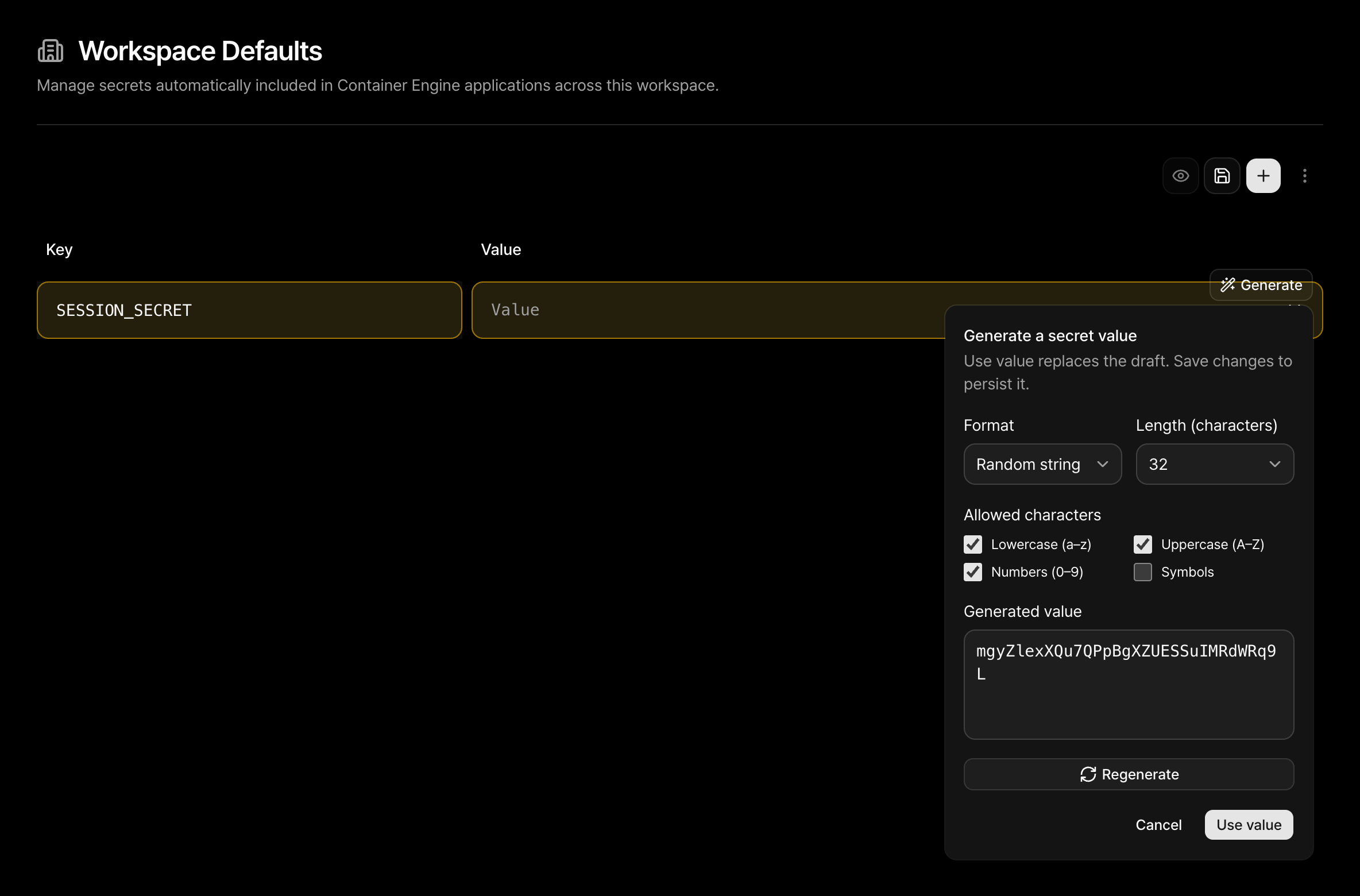
- Generate random values. Choose Random string, Hex or Base64url, preview a value locally, then apply it to your draft and save. Existing stored values are not revealed by the generator.
- Arrange environments. Drag an environment card to change its saved position. Keyboard and touch controls are supported, and cards keep their position while the update is saved.
- Find groups alphabetically. Application Secrets and Shared Secrets group lists now use A–Z ordering across pages.
- See linked keys immediately. Container environment lists show the current keys managed by Envault, including newly added keys. Redeploy the container to apply their values; restarting alone keeps its previous environment.
Recover containers and navigate faster
- Redeploy during a restart loop. A restarting container can be redeployed to apply saved configuration changes when no conflicting resource operation is running.
- Delete from Danger Zone. Restarting or unapplied configuration no longer disables deletion on its own. Explicit confirmation and operation conflict checks still apply.
- Browse resources first. Sidebar navigation, resource search and Quick access put Container Engine, Relational Database and Memory Database before supporting tools.
- Review Security Insights with less waiting. Overview summaries load separately from finding details, which are fetched when expanded.
- More reliable connection details. PostgreSQL connection credentials refresh when you change the selected database account.
- Clearer product guides. Documentation focuses on Console actions, supported integrations and troubleshooting, with updated guides for the new features.